
Often as SEOs we need to review content and data points on different URLs. Screaming Frog is an amazing tool for this — but when working with fewer than 1,000 URLs and only needing a couple of data points, I find it much easier to use Google Sheets' built-in scraping.
Get the Google Sheet — take a copy or check out the formulas now
What's XPath?
XPath (XML Path Language) is a query language used for selecting nodes from an XML or HTML document. It lets you navigate through the elements and attributes of a document, enabling you to pinpoint specific parts of the structure.
In plain terms: XPath lets you target a specific HTML element such as an H1 or a meta title.
You can get the XPath of any element in Chrome DevTools by right-clicking the element and selecting Copy → Copy XPath.
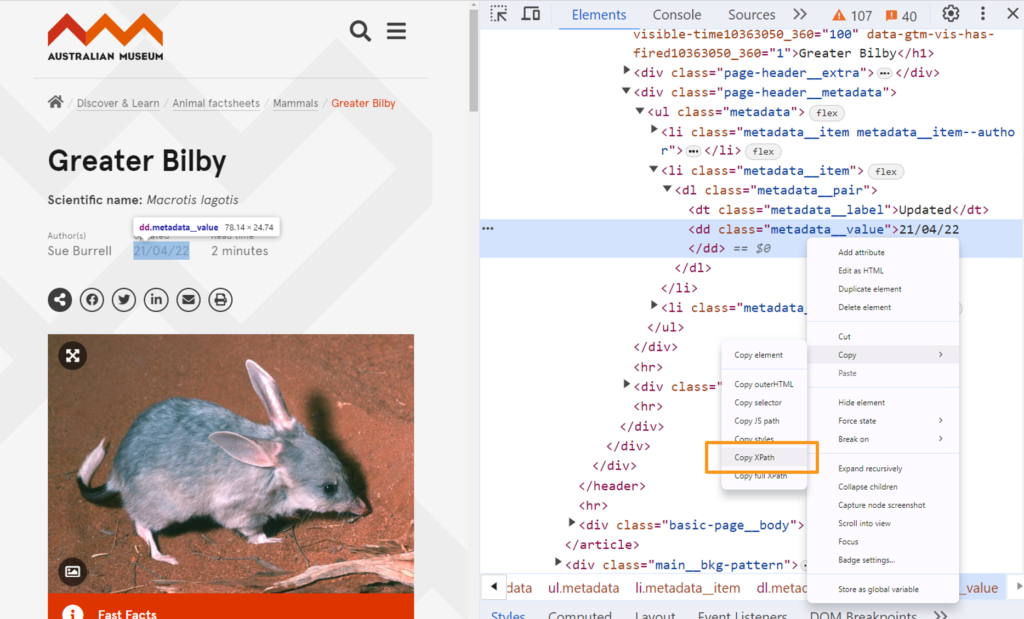
ImportXML for SEO basics
The examples below all work on this page from the Australian Museum:
https://australian.museum/learn/animals/mammals/greater-bilby/
They should work on your website too, assuming the element exists on the page. If you have more than one of a given element, see the Troubleshooting section at the bottom.
H1
<h1>Greater Bilby</h1>XPath: //h1
| Google Sheet Formula | Output |
|---|---|
=IMPORTXML(A2,"//h1") |
Greater Bilby |
Meta Title / Page Title
<title>Greater Bilby - The Australian Museum</title>XPath: //title
| Google Sheet Formula | Output |
|---|---|
=IMPORTXML(A2,"//title") |
Greater Bilby – The Australian Museum |
Meta Description
<meta name="description" content="The Greater Bilby, sometimes depicted as Australia's Easter Bunny, belongs to a group of ground-dwelling marsupials known as bandicoots.">XPath: //meta[@name='description']/@content
XPath breakdown:
//metalooks for<meta[@name='description']looks forname="description"/@contentlooks for thecontentattribute value
| Google Sheet Formula | Output |
|---|---|
=IMPORTXML(A2,"//meta[@name='description']/@content") |
The Greater Bilby, sometimes depicted as Australia's Easter Bunny… |
Canonical
<link rel="canonical" href="https://australian.museum/learn/animals/mammals/greater-bilby/">XPath: //link[@rel='canonical']/@href
XPath breakdown:
//linklooks for<link[@rel='canonical']looks forrel="canonical"/@hreflooks for thehrefattribute value
| Google Sheet Formula | Output |
|---|---|
=IMPORTXML(A2,"//link[@rel='canonical']/@href") |
https://australian.museum/learn/animals/mammals/greater-bilby/ |
H2 / H3 / H4 etc.
<h2>H2 1</h2>
<h2>H2 2</h2>
<h2>H2 3</h2>
XPath: //h2
When there are multiple values you'll need to use TRANSPOSE to prevent it from overwriting the cells below — it will place the values across columns instead of rows.
| Google Sheet Formula | Output Col 1 | Output Col 2 | Output Col 3 |
|---|---|---|---|
=TRANSPOSE(IMPORTXML(A2,"//h2")) |
H2 1 | H2 2 | H2 3 |
Custom ImportXML
Sometimes you need to grab things like article authors or published dates, which require more specific XPath. The examples below are more complex, but all you really need to know is that you can copy XPath from DevTools and use it directly.
Date & Author example
Using: https://australian.museum/learn/animals/mammals/greater-bilby/
<main id="main">
  <article>
    <div class="page-header__metadata">
      <ul class="metadata">
        <li class="metadata__item metadata__item--author">
          <dl class="metadata__pair">
            <dt class="metadata__label">Author(s)</dt>
            <dd class="metadata__value">Sue Burrell</dd>
          </dl>
        </li>
        <li class="metadata__item">
          <dl class="metadata__pair">
            <dt class="metadata__label">Updated</dt>
            <dd class="metadata__value">21/04/22</dd>
          </dl>
        </li>
      </ul>
    </div>
  </article>
</main>
Date
XPath: //*[@id='main']/article/header/div/div/div/div/ul/li[2]/dl/dd
| Google Sheet Formula | Output |
|---|---|
=IMPORTXML(A2,"//*[@id='main']/article/header/div/div/div/div/ul/li[2]/dl/dd") |
28/04/22 |
Author
XPath: //*[@id='main']/article/header/div/div/div/div/ul/li[contains(@class, 'metadata__item metadata__item--author')]/dl/dd
| Google Sheet Formula | Output |
|---|---|
=IMPORTXML(A2,"//*[@id='main']/article/header/…/li[contains(@class, 'metadata__item--author')]/dl/dd") |
Sue Burrell |
Troubleshooting
I have more than one value for the element and it's overwriting the cell below.
Use =TRANSPOSE(IMPORTXML(A2, "XPATH")). Transpose adds the values across columns instead of rows.
My value isn't working and I copied straight from DevTools.
Watch out for different quotation marks. Chrome DevTools XPath uses " " around attributes; Google Sheets requires ' ' around attributes inside the formula string.